Edit Pipeline Destinations
After creating a pipeline, you can edit the Destinations to define the external destinations for exporting the data. You can select more than one destination.
Perform the following steps to edit the Destination:
From the left navigation panel, select Pipelines.
Click the pipeline you want to edit.
Click Destinations.
Click Edit to the right of the Destinations section.

Click Add Destination.

Note: You can add any number of Destinations in this field.
Select a suitable destination from the Select Destination dropdown menu.
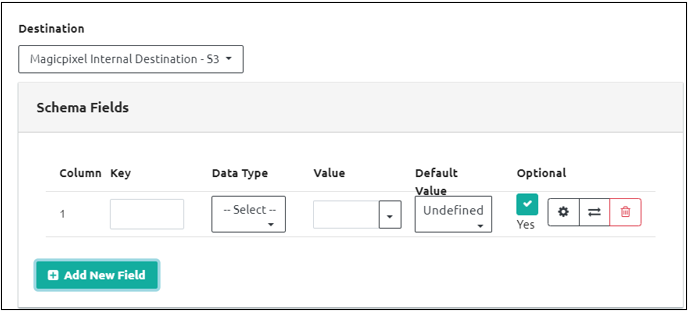
Fill in the following information required in the Schema Fields section:
| Item Name | Description |
|---|---|
| Key | Denotes the column name of the schema field for exporting data. Create a key to denote a category like browser, campaign ID and number of conversions. |
| Data Type | Select the data type for exporting data: - Number - String - Boolean |
| Value | Select the value of the data source schema: - Source Field - Function - JSON Path - URL Param |
| Default Value | Select from the following default values: - Empty String - Undefined |
- The Optional checkbox is selected by default. Unselect the checkbox to make it a mandatory schema field.
Note- The settings, transformation or delete functions are similar to the functions in edit a Data Source.
- Click 'Save' at the top right of the screen.
Step Result: Data source destination is created successfully.
Note: You can add any number of transformations in the Destinations field. To update a transformation, click the settings icon next to it. To delete a transformation, click the delete icon next to the transformation function.