Edit Pipeline Data Source Schema
After creating a pipeline, you can edit the Data Source Schema to define the format of the data to be extracted from the data source or the segment for exporting.
Perform the following steps to edit the Data Source Schema:
From the left navigation panel, select Pipelines.
Click the pipeline you want to edit.
Click Data Source Schema.
Click Edit to the right of the Schema Fields section.

Click Add New Field.

Note: You can add any number of Schema Fields to the Data Source Schema.
Perform the following actions:
- If the pipeline type is Segments, select from the Key dropdown menu.
- If the pipeline type is Data Source, type a key.
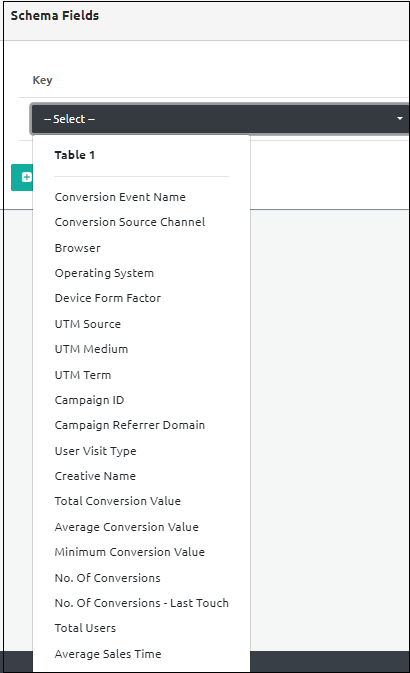
The String Data Type is the default data type for the Segments pipeline. Select one of the following data types for the Data Source pipleline:
- Number
- String
- Boolean
- JSON
Select the default value from the following:
- Empty String
- Undefined
- Null
- Custom Value
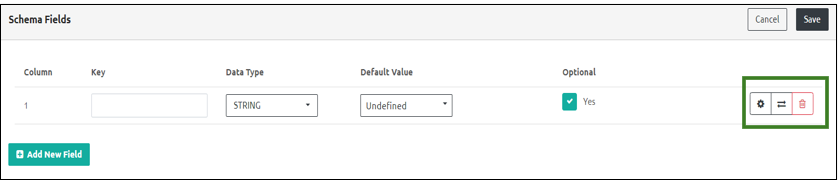
By default, the Optional checkbox is selected. Unselect it to make it a mandatory field.
Click the settings icon to the right to add the following validations.
- Minimum and maximum length
- Pattern
- Allowed Values
Click confirm to save the validations.
Click the Transformation icon to add transformations to the Data Source Schema.
Select the pre-defined or custom function from the Type dropdown menu.
The pre-defined functions are as follows:
- Format Data
- To Bool
- To Number
- URL Encode
- Base64 Encode
- SHA265 Hash
- Base64 Decode
- In the case of Custom Functions, denote the code.
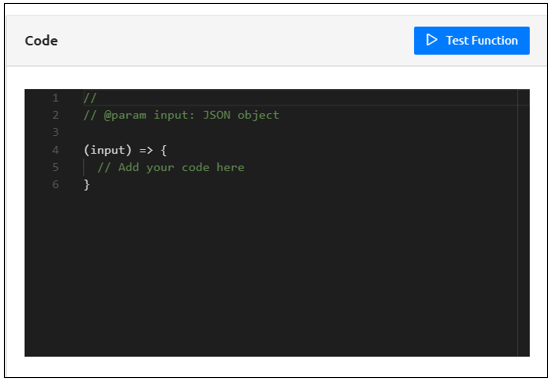
- Click confirm.
Step Result : Data source is created successfully.

Note: You can add any number of transformations in the Schema Fields. To update a transformation, click the settings icon next to it. To delete a transformation, click the delete icon next to the transformation function.